
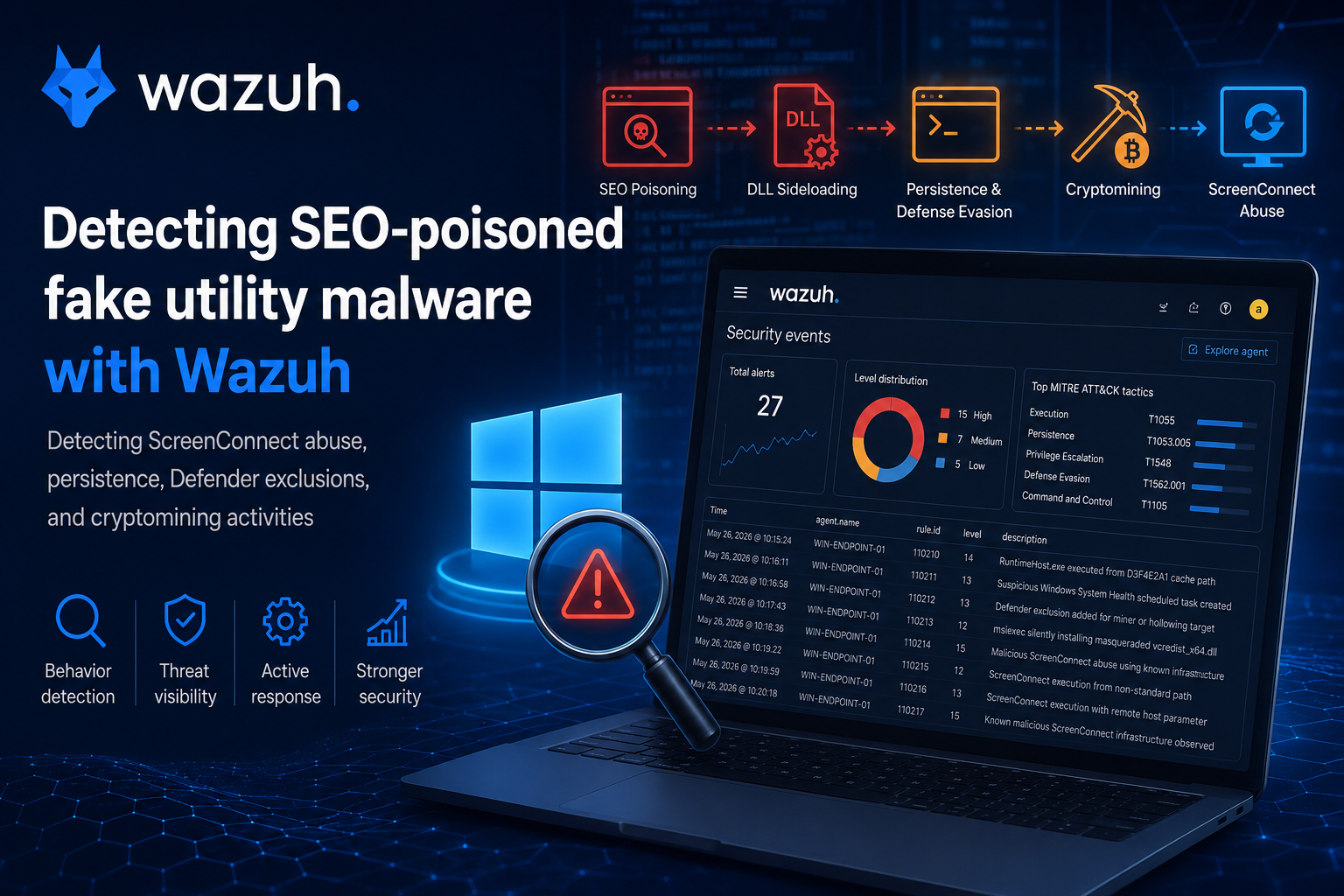
Detecting SEO-Poisoned Fake Utility Malware with Wazuh
Search Engine Optimization (SEO) poisoning remains an effective malware delivery technique because it abuses user trust in search results and software download pages. In a recent investigation, Microsoft reported a cryptojacking campaign where threat actors distributed fake utility software installers that led to ScreenConnect abuse, process hollowing, persistence, Microsoft Defender exclusions, and GPU miner deployment.
The campaign impersonated legitimate utilities, including disk health tools, hardware monitoring tools, GPU testing tools, codec packs, and PDF utilities. Once executed, the malware chain used DLL sideloading and abuse of a silent installer to deploy ScreenConnect, a legitimate remote management tool that the attacker then used to maintain remote access to the compromised endpoint.
In this blog post, we demonstrate how to configure Wazuh to detect behaviors associated with this SEO-poisoned fake utility malware campaign on Windows endpoints.
---
SEO-Poisoned Fake Utility Malware Behavior
The following behaviors were observed in the campaign:
- The user downloads a ZIP archive from a fake utility download website.
- The ZIP archive contains a legitimate-looking executable and a malicious DLL named
autorun.dll. - When the user launches the executable, the legitimate application loads
autorun.dllfrom the same folder using DLL sideloading. - The malicious DLL uses
msiexec.exeto silently install a masqueradedvcredist_x64.dll. - The
vcredist_x64.dllfile acts as a packaged installer for ScreenConnect. - The ScreenConnect client communicates with attacker-controlled infrastructure.
- The attacker transfers
SimpleRunPE.exeto the device through the established ScreenConnect session. SimpleRunPE.execopies itself asRuntimeHost.exeunder a hidden cache path that contains the campaign identifierD3F4E2A1.- The malware creates multiple persistence mechanisms using scheduled tasks, registry Run keys, and a Startup folder shortcut.
- The malware adds Microsoft Defender exclusions for miner-related and .NET utility binaries.
- The malware may deploy GPU mining tools such as
gminer,lolMiner, orSRBMiner-MULTI.
This detection does not attempt to identify the original search result or website that delivered the fake utility. Instead, it focuses on endpoint behaviors that are visible through Sysmon process creation events collected by Wazuh.
---
Indicators of Compromise
The following indicators were published by Microsoft for this campaign. These IOCs can be used for threat hunting and enrichment, but they should not be the only detection method because attacker-controlled infrastructure can change.
| Indicator | Type | Description |
|---|---|---|
direct-download[.]gleeze[.]com | Domain | Hosts malicious ZIP files |
start-download[.]gleeze[.]com | Domain | Hosts malicious ZIP files |
direct-downloads[.]giize[.]com | Domain | Hosts malicious ZIP files |
free-download[.]giize[.]com | Domain | Hosts malicious ZIP files |
directdownload[.]icu | Domain | Host that the ScreenConnect client connects to |
193.42.11[.]108 | IP address | Attacker-controlled IP contacted by ScreenConnect |
wss[:]//minemine.gleeze[.]com:8443/ws | URL | C2 URL used by the hollowed binary |
16562974deec80e41ef57a71a6de8c03ceb393005fb1432f8d9d82c61294ef8c | SHA256 | autorun.dll loaded by a legitimate executable through DLL sideloading |
1b2555b09ac62164638f47c8272beb6b0f97186e37d3a54cb84c723ff7a2eee5 | SHA256 | autorun.dll loaded by a legitimate executable through DLL sideloading |
062bb28765fbaa11f8cc341fa16e2c7f942a122d929cb41f4a0f755b4429f246 | SHA256 | autorun.dll loaded by a legitimate executable through DLL sideloading |
c7425fbe6c3a4937934215c54027d4b67202d12ab490682fae03498870d66d06 | SHA256 | autorun.dll loaded by a legitimate executable through DLL sideloading |
a460d00ef93c8ce70d32e48e55781af66a53328fc2dde45519be196c265de074 | SHA256 | autorun.dll loaded by a legitimate executable through DLL sideloading |
db2d33c4e6e4a5c2263b56e8303c343305a94dde1fc2968304ba260acbbd9f9f | SHA256 | autorun.dll loaded by a legitimate executable through DLL sideloading |
cf3f8160eb5a5580e0c35054847e3ac4d01e9fe74fab8bc12bf6e8a40bf696b2 | SHA256 | autorun.dll loaded by a legitimate executable through DLL sideloading |
69077fcf940fc5852fb32beed15636756ebc04ac971b7ed71d36251e7ea70a20 | SHA256 | autorun.dll loaded by a legitimate executable through DLL sideloading |
2ee93ccbcd49ed94c65dcf52e7dcb8f0fa0a443ca24c0e0c7f79152efba657b7 | SHA256 | autorun.dll loaded by a legitimate executable through DLL sideloading |
9ff07c9fafa9c03fdf69e4abf6806aa7c938b5480e7e258f227db0719ecd6386 | SHA256 | SimpleRunPE.exe transferred through ScreenConnect |
7035c2abeb617e828dfda1b119b8544fa9ae15a1d263d18bc5506acaf381f496 | SHA256 | SimpleRunPE.exe transferred through ScreenConnect |
e021662a652ba95c8778b991056696ab3c9b0f60d5e23b1e6cf73c3847db6610 | SHA256 | ScreenConnect file masquerading as a DLL |
---
Infrastructure
We use the following infrastructure to demonstrate the detection of SEO-poisoned fake utility malware with Wazuh:
- A Wazuh server with the Wazuh manager, indexer, and dashboard installed.
- A Windows 10 or Windows 11 endpoint with the Wazuh agent installed and enrolled in the Wazuh server.
- Sysmon is installed on the Windows endpoint to collect process creation telemetry.
- An isolated Windows test VM used to safely emulate the observed behaviors without executing real malware or contacting attacker infrastructure.
---
Detection with Wazuh
We use the following technique to detect the malware activity:
- Sysmon Event ID 1 process creation logs collected by the Wazuh agent.
- Custom Wazuh rules to detect suspicious process execution, scheduled task creation, Defender exclusion changes, silent
msiexec.exeactivity, and ScreenConnect abuse.
The detection uses both behavior-based rules and IOC-assisted rules. Behavior-based rules provide better long-term coverage, while IOC-assisted rules increase confidence when known campaign indicators are observed.
---
Windows Endpoint Configuration
Perform the following steps to configure the Windows endpoint.
1. Download Sysmon
Download Sysmon from the Microsoft Sysinternals page:
Extract the downloaded Sysmon package to a folder such as:
C:\Sysmon2. Download the Sysmon Configuration File
Download the Sysmon configuration file:
Save the file in the same Sysmon folder, for example:
C:\Sysmon\sysmonconfig.xml3. Install Sysmon
Open PowerShell as Administrator, then go to the Sysmon directory:
cd C:\SysmonInstall Sysmon using the configuration file:
.\Sysmon64.exe -accepteula -i sysmonconfig.xmlTo confirm that Sysmon is installed and running, use:
Get-Service Sysmon644. Configure the Wazuh Agent to Collect Sysmon Logs
Add the following configuration to the Wazuh agent configuration file:
C:\Program Files (x86)\ossec-agent\ossec.confAdd the configuration inside the <ossec_config> block:
<localfile>
  <location>Microsoft-Windows-Sysmon/Operational</location>
  <log_format>eventchannel</log_format>
</localfile>
5. Restart the Wazuh Agent
Restart the Wazuh agent using PowerShell with administrator privileges:
Restart-Service -Name wazuhTo confirm that the Wazuh agent is running, use:
Get-Service wazuh6. Confirm Sysmon Event Collection
Confirm that Sysmon Event ID 1 logs are being received by the Wazuh server before adding the custom rules.
---
Wazuh Dashboard Configuration
Perform the following steps on the Wazuh dashboard to add the custom detection rules.
- Navigate to Server management > Rules.
- Click Add new rules file
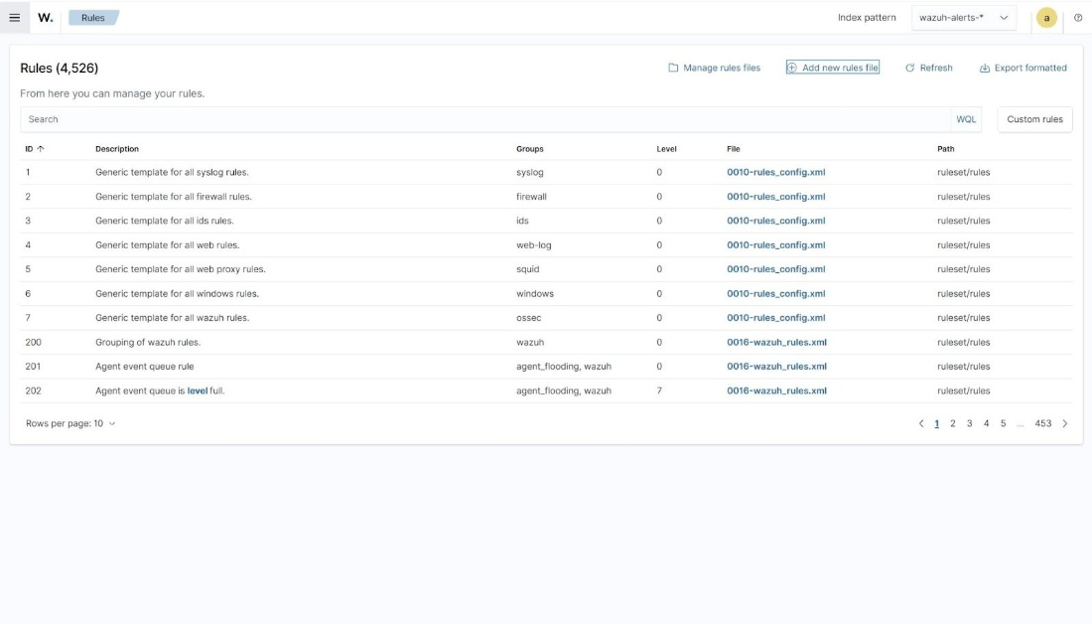
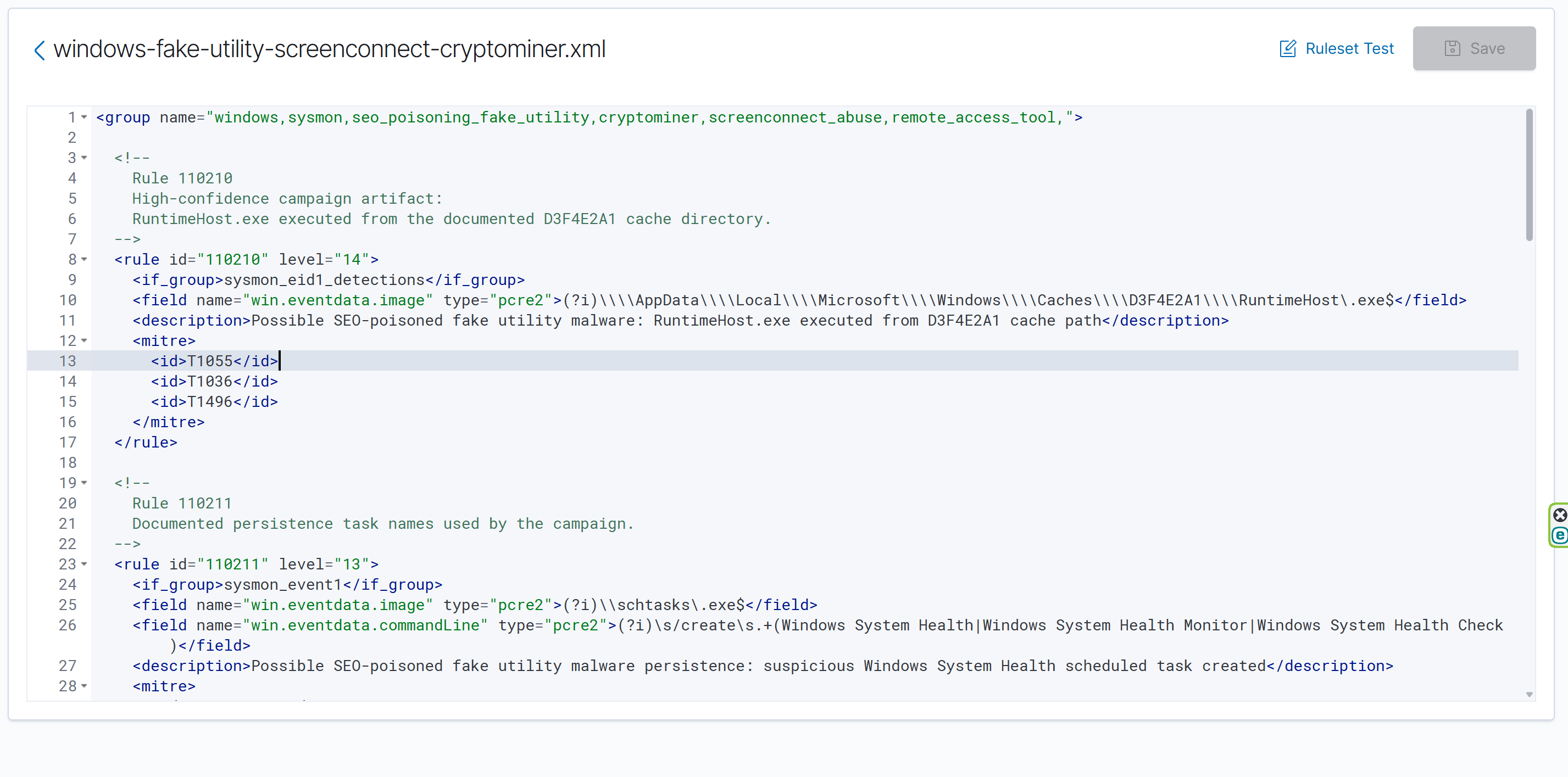
- Name the file:
windows-fake-utility-screenconnect-cryptominer.xml- Copy and paste the following rules:
<group name="windows,sysmon,seo_poisoning_fake_utility,cryptominer,screenconnect_abuse,remote_access_tool,">

  <!-- RuntimeHost.exe executed from the documented D3F4E2A1 cache directory -->
  <rule id="110210" level="14">
    <if_group>sysmon_eid1_detections</if_group>
    <field name="win.eventdata.image" type="pcre2">(?i)\\\\AppData\\\\Local\\\\Microsoft\\\\Windows\\\\Caches\\\\D3F4E2A1\\\\RuntimeHost\.exe$</field>
    <description>Possible SEO-poisoned fake utility malware: RuntimeHost.exe executed from D3F4E2A1 cache path</description>
    <mitre>
      <id>T1055</id>
      <id>T1036</id>
      <id>T1496</id>
    </mitre>
  </rule>

  <!-- Suspicious scheduled task names used by the campaign -->
  <rule id="110211" level="13">
    <if_group>sysmon_event1</if_group>
    <field name="win.eventdata.image" type="pcre2">(?i)\\schtasks\.exe$</field>
    <field name="win.eventdata.commandLine" type="pcre2">(?i)\s/create\s.+(Windows System Health|Windows System Health Monitor|Windows System Health Check)</field>
    <description>Possible SEO-poisoned fake utility malware persistence: suspicious Windows System Health scheduled task created</description>
    <mitre>
      <id>T1053.005</id>
    </mitre>
  </rule>

  <!-- Defender exclusion behavior for campaign-related binaries -->
  <rule id="110212" level="13">
    <if_group>sysmon_event1</if_group>
    <field name="win.eventdata.image" type="pcre2">(?i)\\(powershell|pwsh)\.exe$</field>
    <field name="win.eventdata.commandLine" type="pcre2">(?i)Add-MpPreference.+(-ExclusionPath|-ExclusionProcess).+(D3F4E2A1|RuntimeHost\.exe|lolMiner\.exe|SRBMiner-MULTI\.exe|gminer\.exe|miner\.exe|InstallUtil\.exe|RegAsm\.exe|RegSvcs\.exe|MSBuild\.exe|AppLaunch\.exe|AddInProcess\.exe|aspnet_compiler\.exe)</field>
    <description>Possible SEO-poisoned fake utility malware defense evasion: Defender exclusion added for miner or hollowing target</description>
    <mitre>
      <id>T1562.001</id>
    </mitre>
  </rule>

  <!-- Silent msiexec behavior involving masqueraded vcredist_x64.dll -->
  <rule id="110213" level="12">
    <if_group>sysmon_event1</if_group>
    <field name="win.eventdata.image" type="pcre2">(?i)\\msiexec\.exe$</field>
    <field name="win.eventdata.commandLine" type="pcre2">(?i)(/i|\-i).+vcredist_x64\.dll.+(/quiet|/qn|/passive)</field>
    <description>Possible SEO-poisoned fake utility malware: msiexec silently installing masqueraded vcredist_x64.dll</description>
    <mitre>
      <id>T1218.007</id>
      <id>T1036</id>
    </mitre>
  </rule>

  <!-- IOC-assisted ScreenConnect detection using known campaign infrastructure -->
  <rule id="110214" level="15">
    <if_group>sysmon_event1</if_group>
    <field name="win.eventdata.image" type="pcre2">(?i)\\ScreenConnect\.ClientService\.exe$</field>
    <field name="win.eventdata.commandLine" type="pcre2">(?i)(directdownload\.icu|193\.42\.11\.108|h=directdownload\.icu)</field>
    <description>Possible malicious ScreenConnect abuse from SEO-poisoned fake utility campaign using known infrastructure</description>
    <mitre>
      <id>T1219</id>
      <id>T1105</id>
    </mitre>
  </rule>

  <!-- ScreenConnect running from a non-standard path -->
  <rule id="110215" level="12">
    <if_group>sysmon_event1</if_group>
    <field name="win.eventdata.image" type="pcre2">(?i)\\ScreenConnect\.ClientService\.exe$</field>
    <field name="win.eventdata.image" negate="yes" type="pcre2">(?i)\\Program Files( \(x86\))?\\ScreenConnect Client\\</field>
    <description>Suspicious ScreenConnect client execution from non-standard installation path</description>
    <mitre>
      <id>T1219</id>
    </mitre>
  </rule>

  <!-- ScreenConnect launched with remote host, relay, or URL parameter -->
  <rule id="110216" level="13">
    <if_group>sysmon_event1</if_group>
    <field name="win.eventdata.image" type="pcre2">(?i)\\ScreenConnect\.ClientService\.exe$</field>
    <field name="win.eventdata.commandLine" type="pcre2">(?i)(\bh=|\bhost=|\brelay=|\burl=|://)</field>
    <description>Suspicious ScreenConnect client execution with remote host or relay parameter</description>
    <mitre>
      <id>T1219</id>
      <id>T1105</id>
    </mitre>
  </rule>

  <!-- Correlated IOC escalation from ScreenConnect remote host parameter -->
  <rule id="110217" level="15">
    <if_sid>110216</if_sid>
    <field name="win.eventdata.commandLine" type="pcre2">(?i)(directdownload\.icu|193\.42\.11\.108|h=directdownload\.icu)</field>
    <description>Known malicious ScreenConnect infrastructure observed in SEO-poisoned fake utility campaign</description>
    <mitre>
      <id>T1219</id>
      <id>T1105</id>
    </mitre>
  </rule>

</group>- Click Save and Reload to apply the rule changes.
---
Rule Logic Summary
| Rule ID | Description |
|---|---|
110210 | Triggered when RuntimeHost.exe executes from the documented D3F4E2A1 cache directory. |
110211 | Triggered when schtasks.exe creates one of the documented suspicious scheduled task names. |
110212 | Triggered when PowerShell adds Microsoft Defender exclusions for campaign-related binaries. |
110213 | Triggered when msiexec.exe silently installs a file named vcredist_x64.dll. |
110214 | Triggered when ScreenConnect runs with known campaign infrastructure in the command line. |
110215 | Triggered when ScreenConnect.ClientService.exe runs from a non-standard installation path. |
110216 | Triggered when ScreenConnect.ClientService.exe runs with host, relay, URL, or remote connection parameters. |
110217 | Triggered when rule 110216 matches and the command line contains known campaign infrastructure. |
---
Attack Emulation
The following test safely emulates the observed behavior in an isolated Windows VM. It does not execute real malware or contact attacker-controlled infrastructure.
Note: Run the following commands using PowerShell with administrator privileges.
Emulate Silent msiexec.exe Execution
$TestRoot = "$env:USERPROFILE\Downloads\CrystalDiskInfo_Setup_Test"
New-Item -ItemType Directory -Force $TestRoot
New-Item -ItemType File -Force "$TestRoot\vcredist_x64.dll"

Start-Process msiexec.exe -ArgumentList "/i `"$TestRoot\vcredist_x64.dll`" /quiet" -Wait
This should trigger rule 110213.
---
Emulate ScreenConnect Execution with a Host Parameter
$SCTest = "C:\Users\Public\SC-Test"
New-Item -ItemType Directory -Force $SCTest

Copy-Item C:\Windows\System32\cmd.exe "$SCTest\ScreenConnect.ClientService.exe"

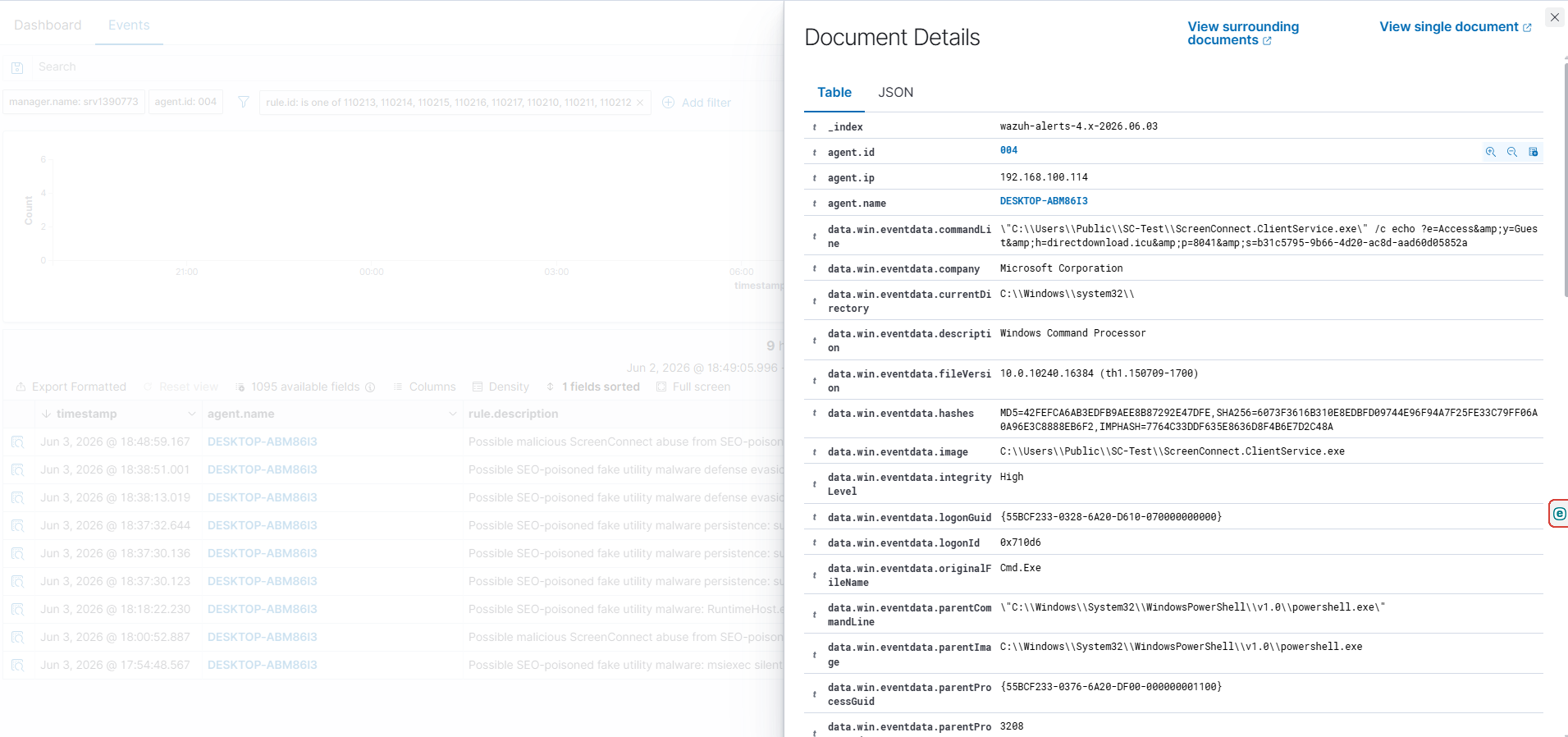
& "$SCTest\ScreenConnect.ClientService.exe" /c echo "?e=Access&y=Guest&h=directdownload.icu&p=8041&s=b31c5795-9b66-4d20-ac8d-aad60d05852a"
This should trigger rules 110214, 110215, 110216, and 110217.
---
Emulate SimpleRunPE.exe Copying Itself as RuntimeHost.exe
$InstallPath = "$env:LOCALAPPDATA\Microsoft\Windows\Caches\D3F4E2A1"
New-Item -ItemType Directory -Force $InstallPath

Copy-Item C:\Windows\System32\cmd.exe "$InstallPath\SimpleRunPE.exe"
Copy-Item "$InstallPath\SimpleRunPE.exe" "$InstallPath\RuntimeHost.exe"

attrib +h +s "$InstallPath"
attrib +h +s "$InstallPath\RuntimeHost.exe"

& "$InstallPath\RuntimeHost.exe" /c whoami
This should trigger rule 110210.
---
Emulate Scheduled Task Persistence
$RuntimeHost = "$env:LOCALAPPDATA\Microsoft\Windows\Caches\D3F4E2A1\RuntimeHost.exe"

schtasks /create /tn "Windows System Health" /tr "`"$RuntimeHost`" /c whoami" /sc onlogon /rl highest /f

schtasks /create /tn "Windows System Health Monitor" /tr "`"$RuntimeHost`" /c whoami" /sc onstart /delay 0001:00 /rl highest /f

schtasks /create /tn "Windows System Health Check" /tr "`"$RuntimeHost`" /c whoami" /sc minute /mo 5 /rl highest /f
This should trigger rule 110211.
---
Emulate Microsoft Defender Exclusion Behavior
PowerShell.exe -NoProfile -NonInteractive -ExecutionPolicy Bypass -Command "Add-MpPreference -ExclusionProcess RuntimeHost.exe,lolMiner.exe,SRBMiner-MULTI.exe,gminer.exe,InstallUtil.exe,RegAsm.exe,RegSvcs.exe,MSBuild.exe -ErrorAction SilentlyContinue"This should trigger rule 110212.
---
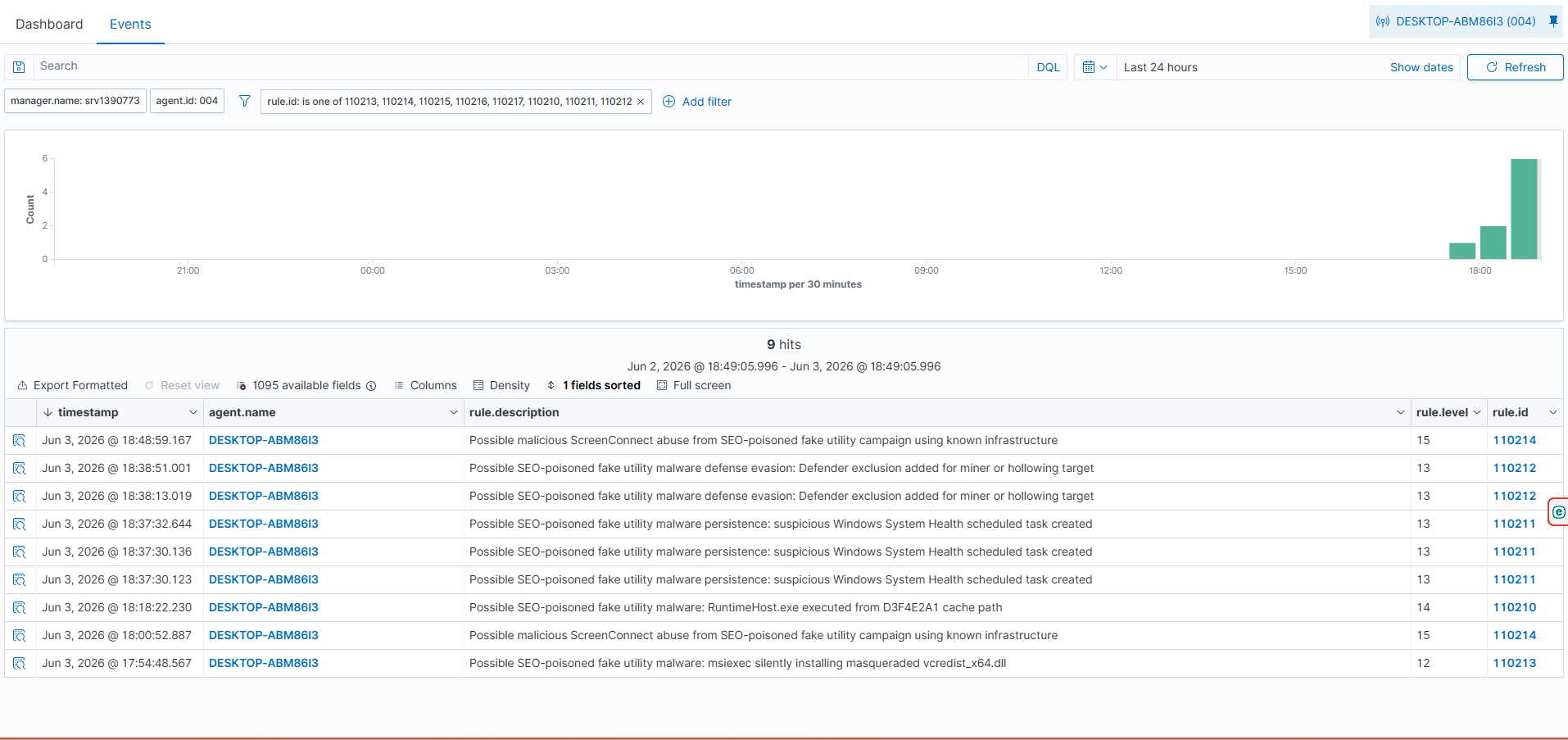
Detection Results
To view the generated alerts on the Wazuh dashboard:
- Navigate to Threat intelligence > Threat Hunting.
- Select the Events tab.
- Click Add filter.
- Filter for
rule.groups. - Select is one of.
- Add the following values:
seo_poisoning_fake_utility
cryptominer
screenconnect_abuse
remote_access_tool
You can also filter by rule IDs:
rule.id:(110210 OR 110211 OR 110212 OR 110213 OR 110214 OR 110215 OR 110216 OR 110217)Expected Alerts
| Rule ID | Expected Alert |
|---|---|
110210 | RuntimeHost.exe was executed from the D3F4E2A1 cache path. |
110211 | Suspicious Windows System Health scheduled task created. |
110212 | Defender exclusion added for miner or hollowing target. |
110213 | msiexec.exe silently installed masqueraded vcredist_x64.dll. |
110214 | Malicious ScreenConnect abuse using known campaign infrastructure. |
110215 | ScreenConnect execution from a non-standard path. |
110216 | ScreenConnect execution with remote host or relay parameter. |
110217 | Known malicious ScreenConnect infrastructure was observed after host parameter detection. |
---
Cleanup
Run the following commands on the Windows endpoint after testing:
schtasks /delete /tn "Windows System Health" /f 2>$null
schtasks /delete /tn "Windows System Health Monitor" /f 2>$null
schtasks /delete /tn "Windows System Health Check" /f 2>$null

PowerShell.exe -Command "Remove-MpPreference -ExclusionProcess RuntimeHost.exe,lolMiner.exe,SRBMiner-MULTI.exe,gminer.exe,InstallUtil.exe,RegAsm.exe,RegSvcs.exe,MSBuild.exe -ErrorAction SilentlyContinue"

$InstallPath = "$env:LOCALAPPDATA\Microsoft\Windows\Caches\D3F4E2A1"

if (Test-Path $InstallPath) {
    Stop-Process -Name RuntimeHost -Force -ErrorAction SilentlyContinue

    attrib -h -s "$InstallPath" 2>$null
    attrib -h -s "$InstallPath\RuntimeHost.exe" 2>$null
    attrib -h -s "$InstallPath\SimpleRunPE.exe" 2>$null

    Remove-Item "$InstallPath" -Recurse -Force -ErrorAction SilentlyContinue
}

Remove-Item "$env:USERPROFILE\Downloads\CrystalDiskInfo_Setup_Test" -Recurse -Force -ErrorAction SilentlyContinue
Remove-Item "C:\Users\Public\SC-Test" -Recurse -Force -ErrorAction SilentlyContinue
---
Tuning
If ScreenConnect is legitimately used in your environment, review rules 110215 and 110216 before deploying them in production. You can reduce false positives by allowlisting approved installation paths, approved relay domains, and expected ScreenConnect command-line patterns.
The IOC-based rules 110214 and 110217 are high-confidence but may become ineffective if the attacker changes the infrastructure. Behavior-based rules such as 110210, 110211, 110212, 110213, 110215, and 110216 provide stronger long-term detection value.
---
Conclusion
This blog post demonstrated how Wazuh can detect behaviors associated with an SEO-poisoned fake utility malware campaign that leads to ScreenConnect abuse and cryptomining.
The detection uses Sysmon process creation events and Wazuh custom rules to identify suspicious RuntimeHost.exe execution, scheduled task persistence, Microsoft Defender exclusions, silent msiexec.exe activity, and suspicious ScreenConnect execution.
By focusing on endpoint behavior rather than relying solely on domains, IP addresses, and hashes, defenders can improve detection coverage even as attacker infrastructure changes.
---